Lab 06: SSH & Telnet

Back to Labs

1. Lab Objectives

By the end of this lab you should be able to:

  • Understand the purpose and functionality of Telnet and SSH protocols.
  • Configure Telnet on a Cisco switch for remote command-line access.
  • Implement SSH to establish secure encrypted communication.
  • Compare Telnet and SSH in terms of authentication and data security.
  • Verify remote access configurations using Packet Tracer simulation.

2. Introduction to Telnet

Telnet is a terminal emulation protocol that allows remote command-line access to network devices over TCP/IP. It enables administrators to execute commands on routers, switches, or servers as if they were locally connected. Telnet transmits all traffic in plain text, including credentials, making it unsuitable for untrusted networks.

3. Telnet - Configuration Steps (Packet Tracer)

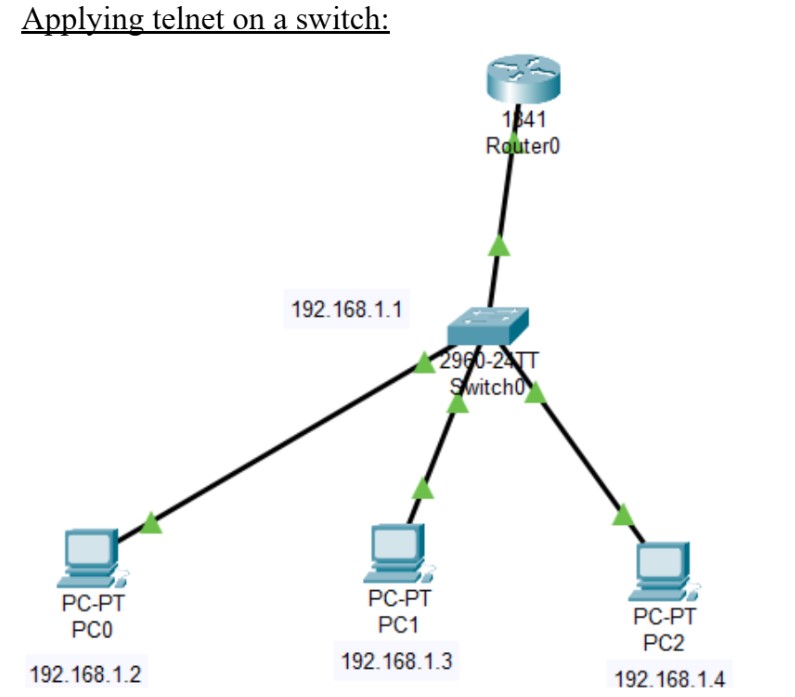
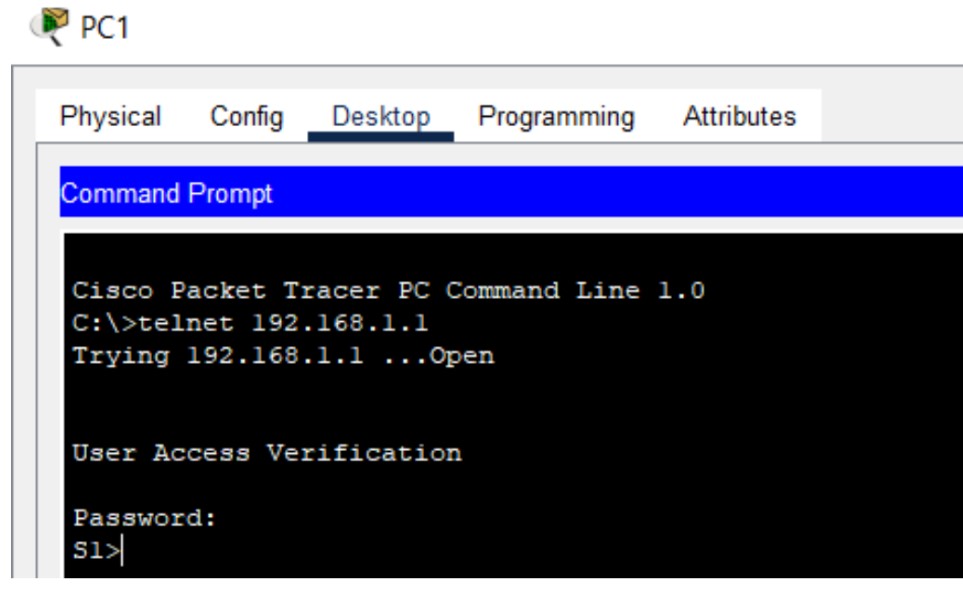
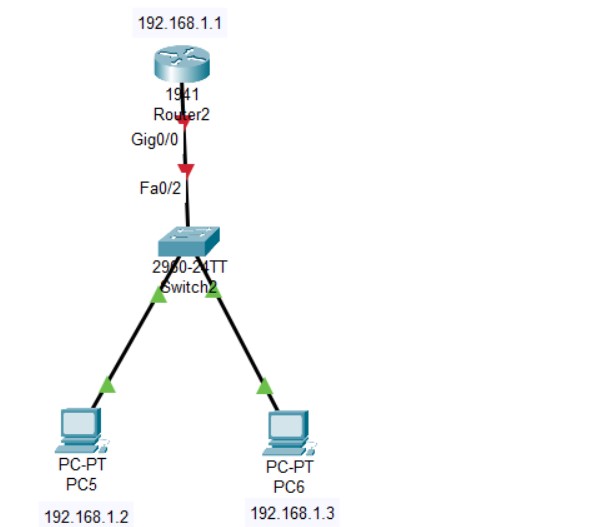
  1. Create a topology with a PC and a switch (or router) in Packet Tracer.
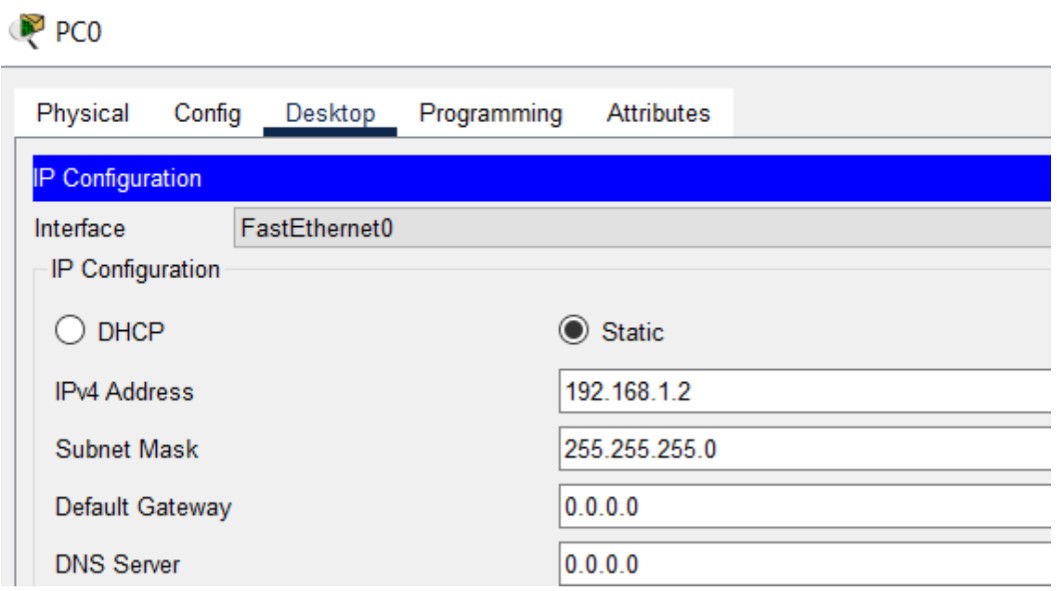
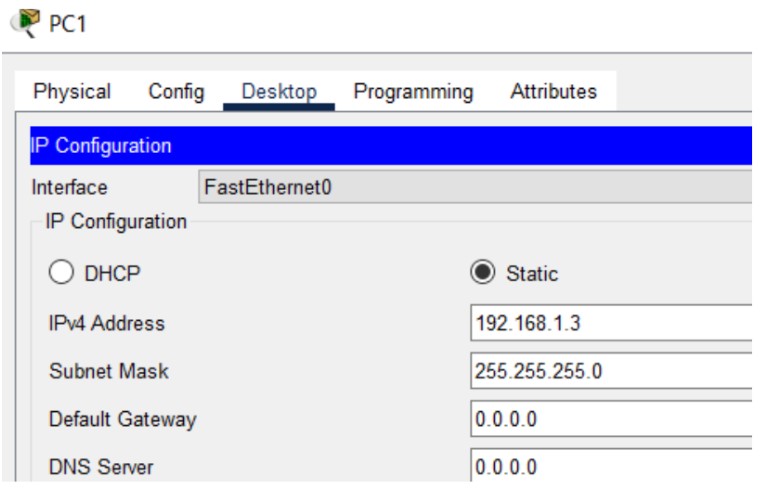
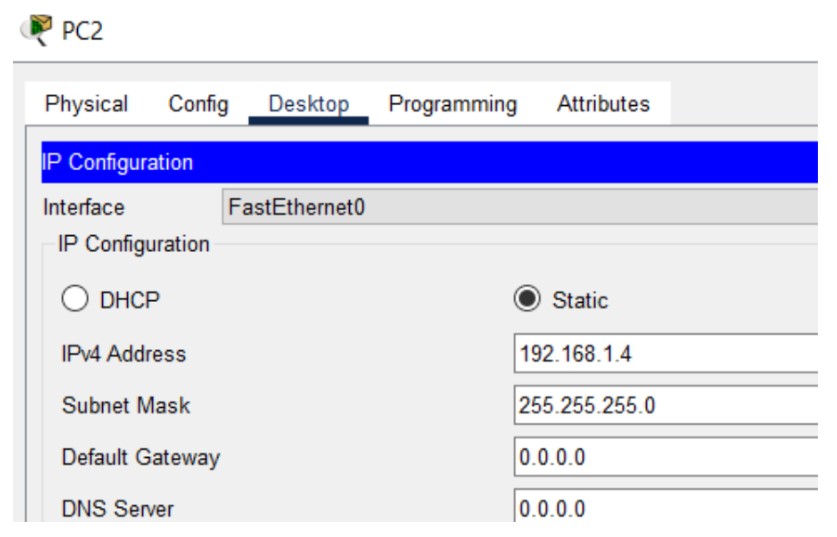
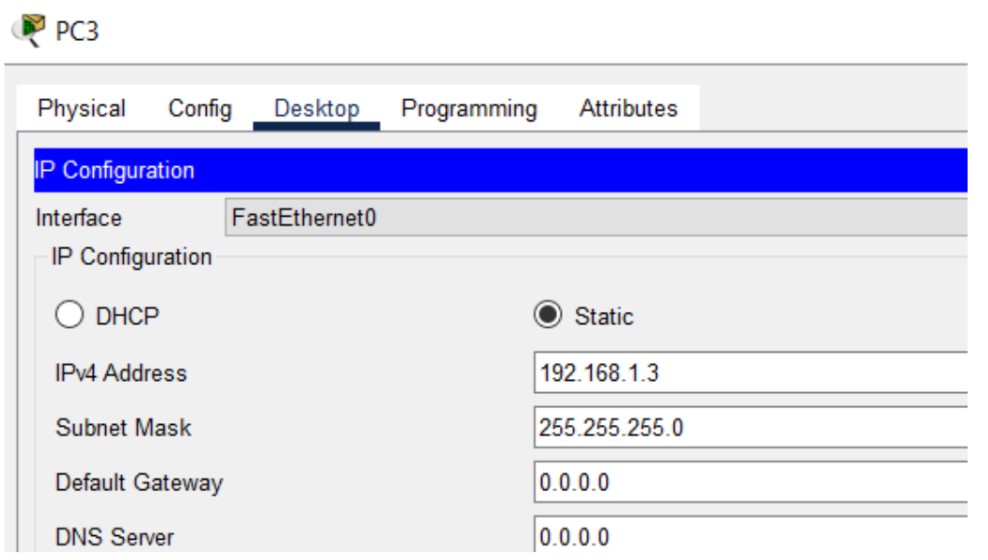
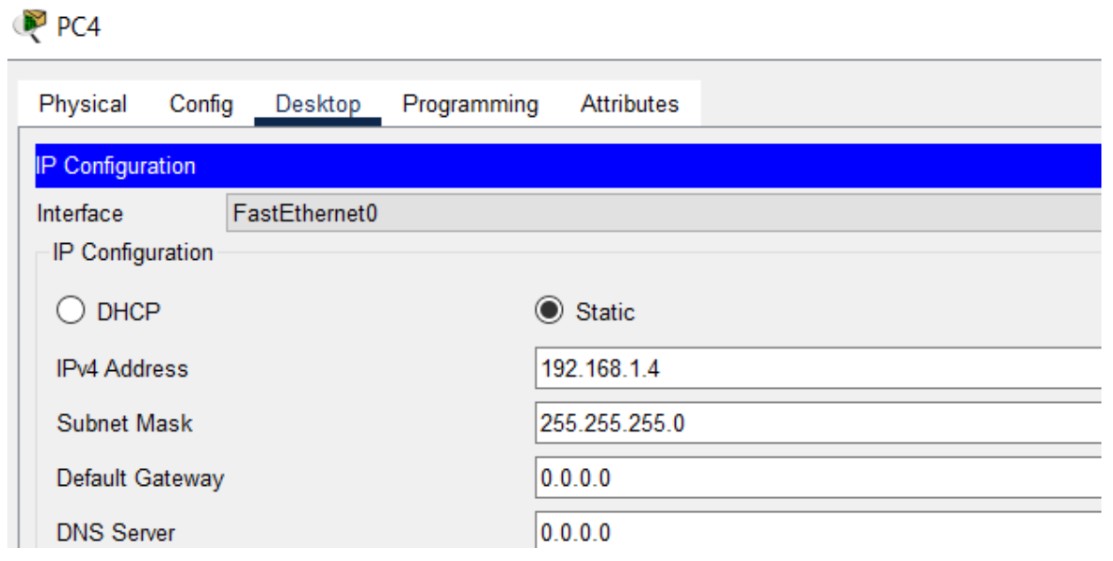
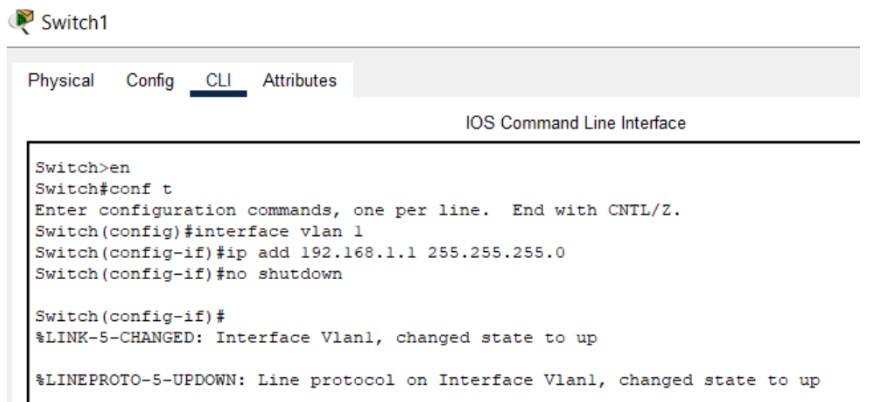
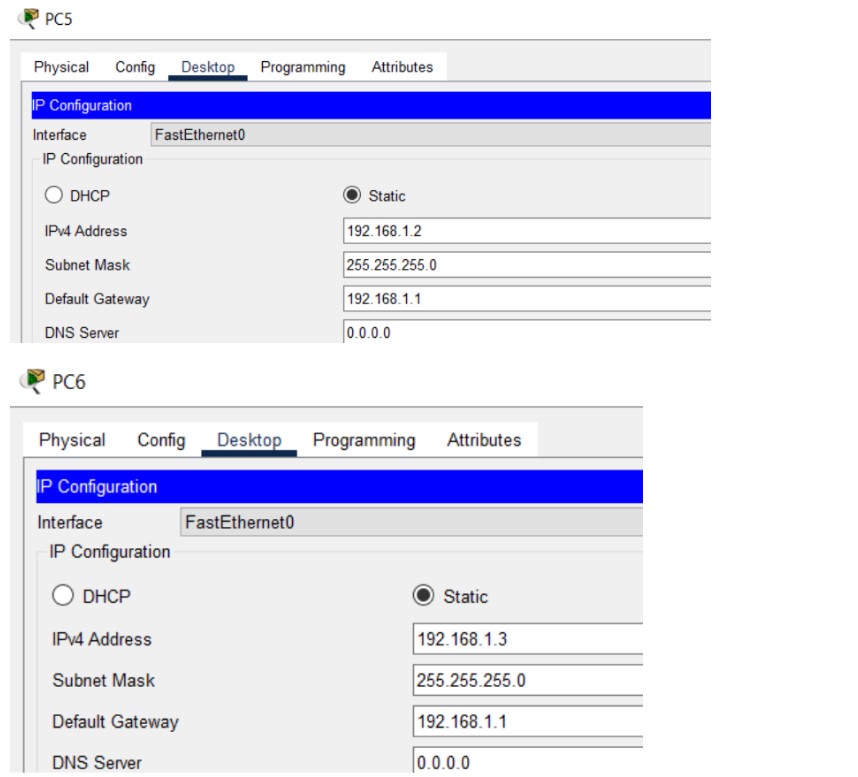
  2. Assign IP addresses to the PC and configure VLAN 1 interface on the switch (if required).
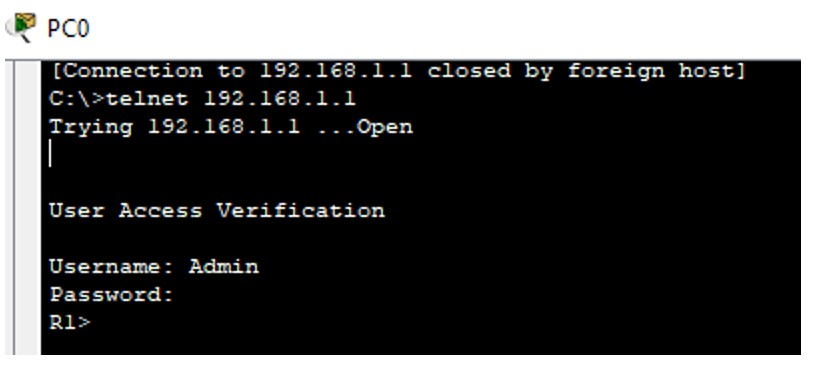
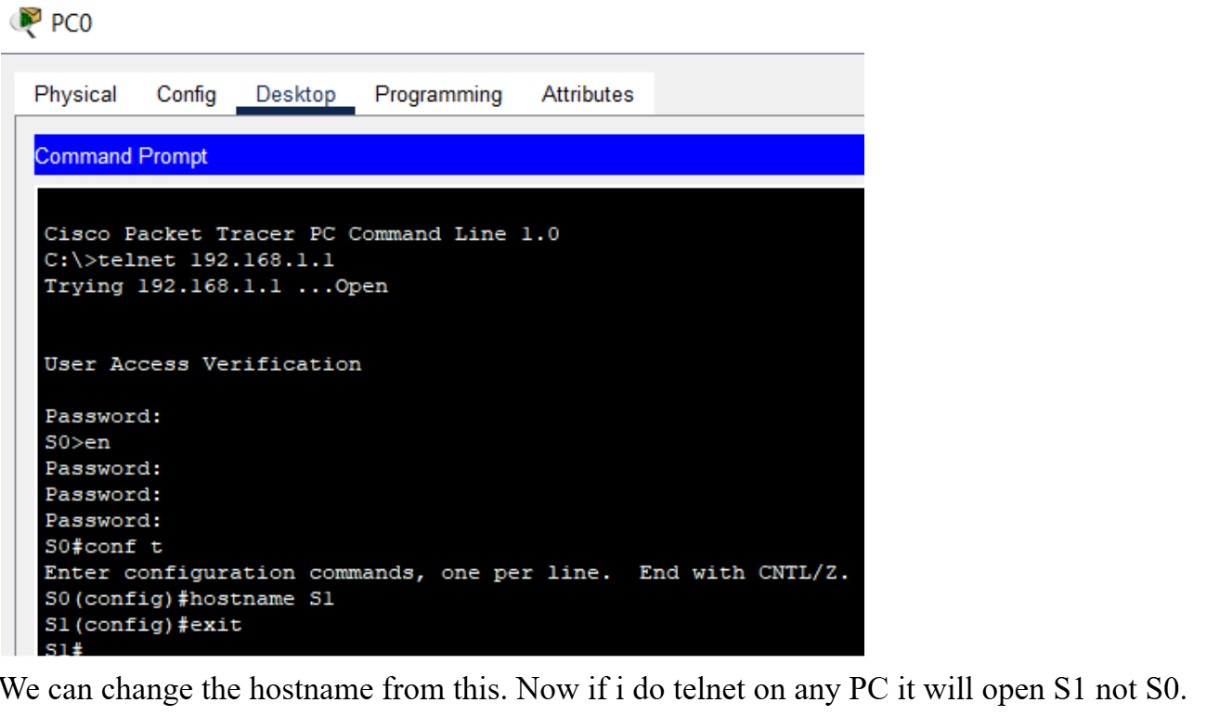
  3. Attempt to Telnet to the device — it will fail until authentication is configured.
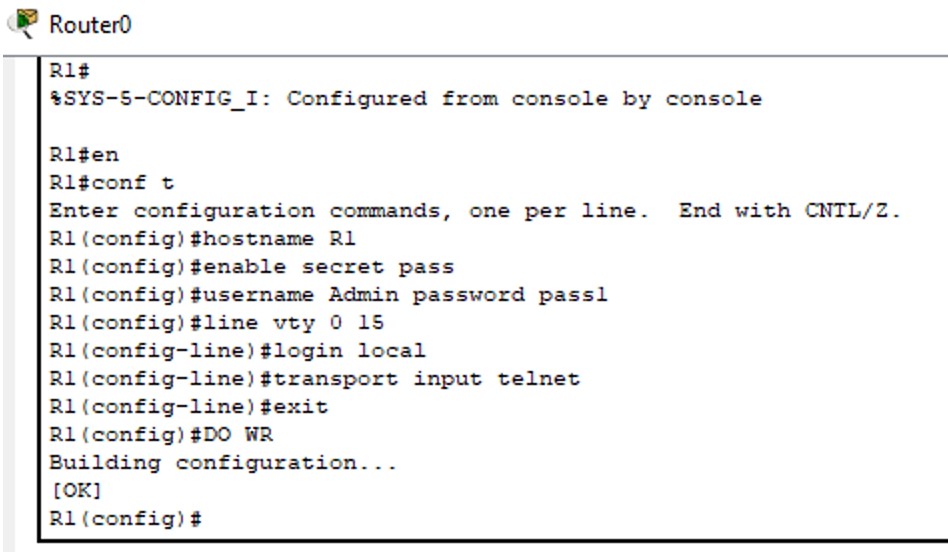
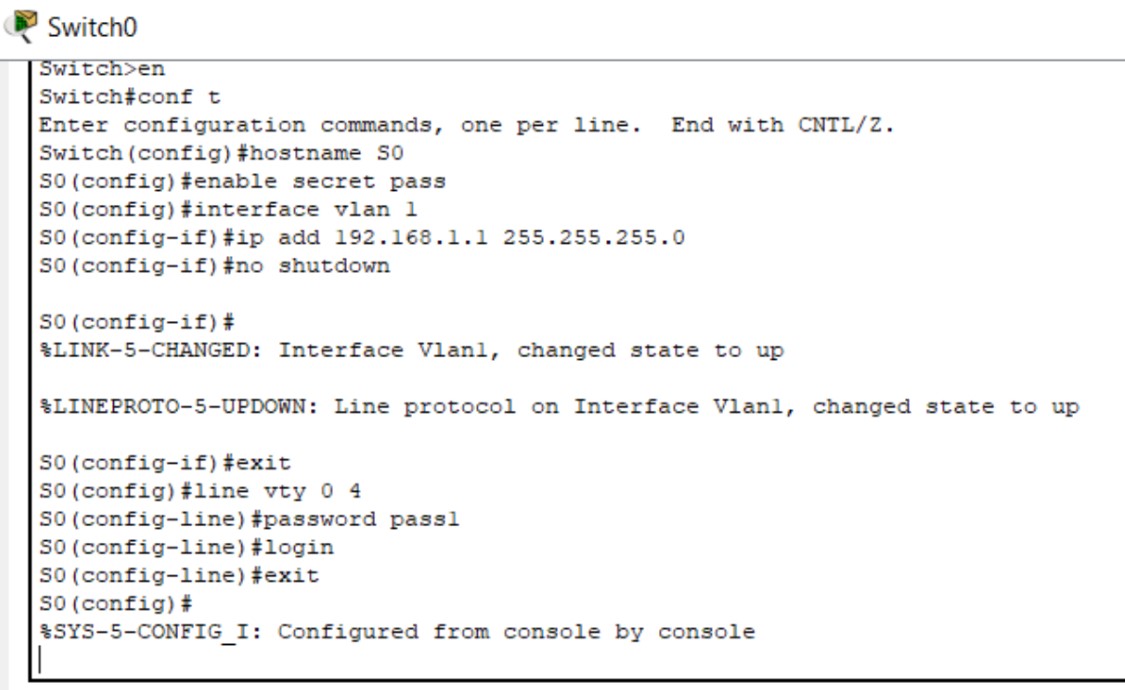
  4. On the switch, configure VTY lines, set a password, and enable login:

enable
configure terminal
interface vlan 1
 ip address 192.168.10.2 255.255.255.0
 no shutdown
exit

line vty 0 4
 password yourVTYpassword
 login
exit

enable password yourEnablePassword
write memory
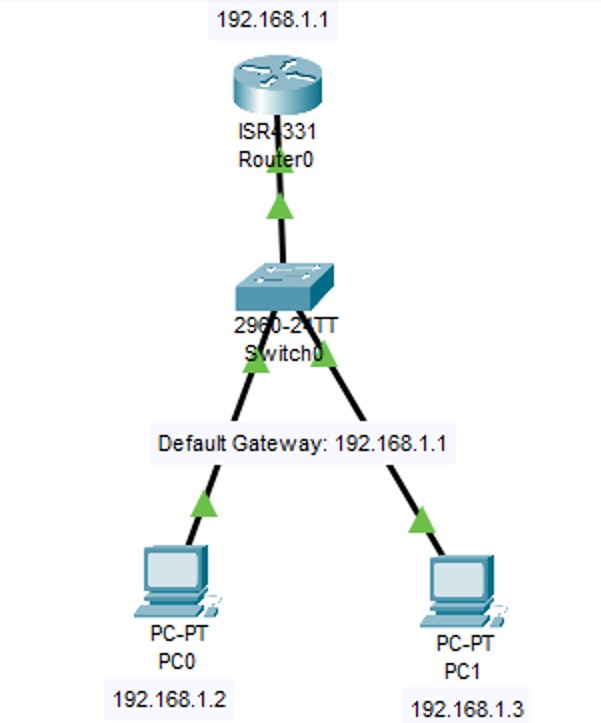
Explanation: The code above sets an IP on VLAN 1 (if switch supports SVI), configures VTY lines with a password and enables privileged access with an enable password.

4. Introduction to SSH

SSH (Secure Shell) is a cryptographic network protocol for secure remote login and command execution. It encrypts all data between client and server, protecting credentials and session data. SSH supports password-based and key-based authentication and is the recommended replacement for Telnet on production networks.

5. SSH - Configuration Steps (Packet Tracer / CLI)

  1. Use the same topology you used for Telnet (PC + switch/router).
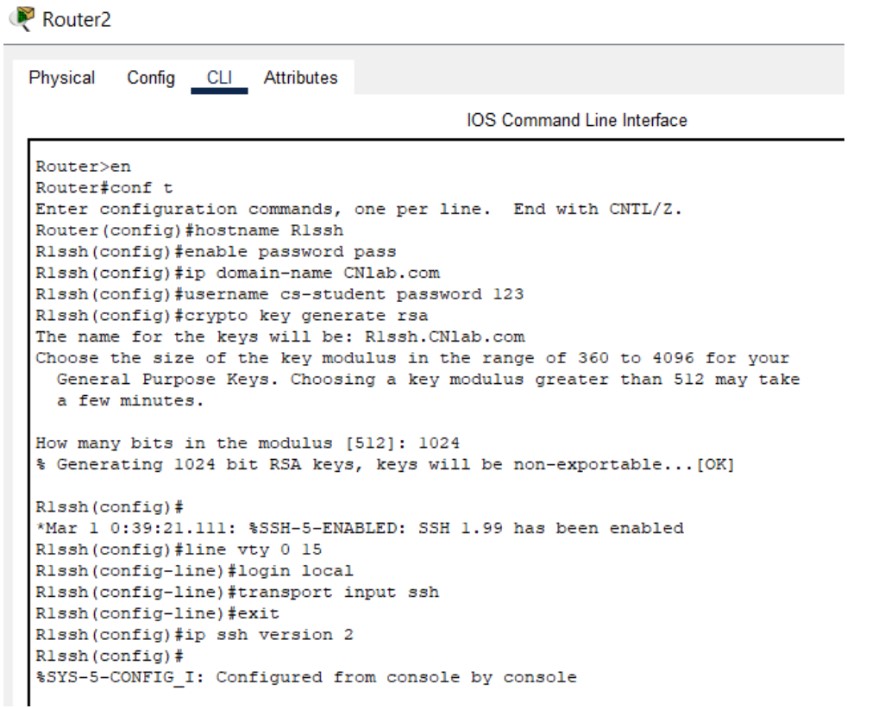
  2. On the device configure hostname and domain name (required for RSA key generation).
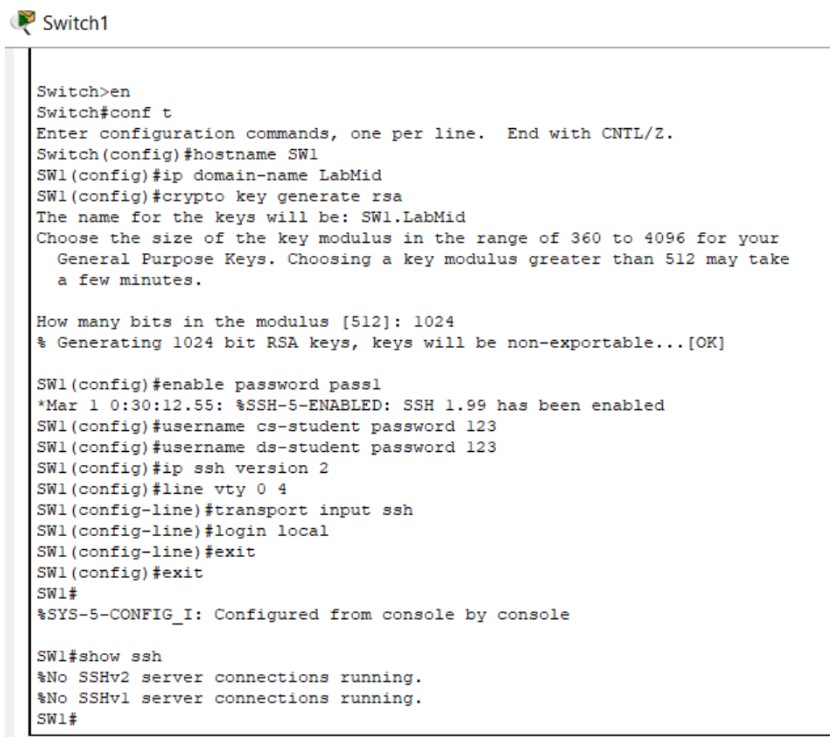
  3. Generate RSA keys, create a local username, and configure VTY to accept SSH only.
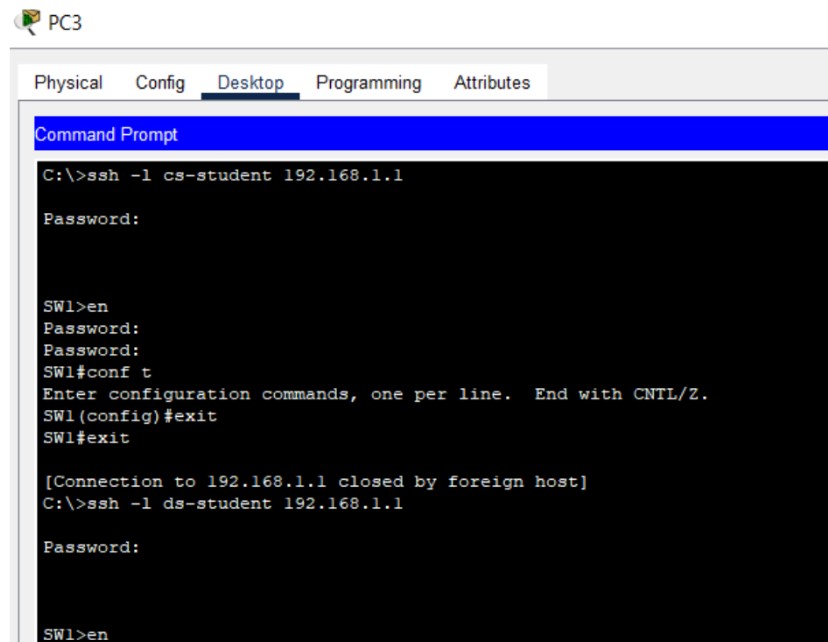
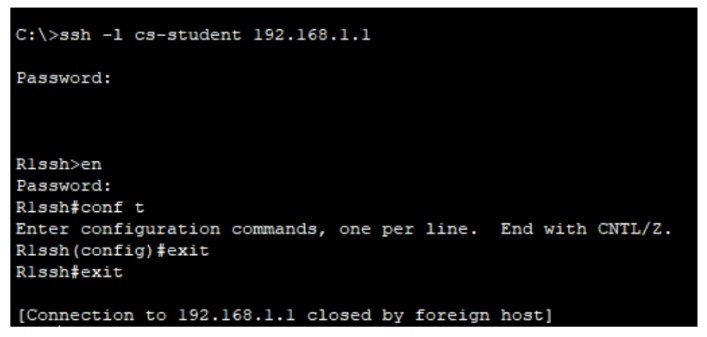
  4. Test SSH from a terminal on the PC (or from Packet Tracer's terminal).

enable
configure terminal
hostname Switch1
ip domain-name cnlab.local

crypto key generate rsa modulus 1024
username admin secret StrongPassword123

line vty 0 4
 login local
 transport input ssh
 exit

ip ssh version 2
write memory
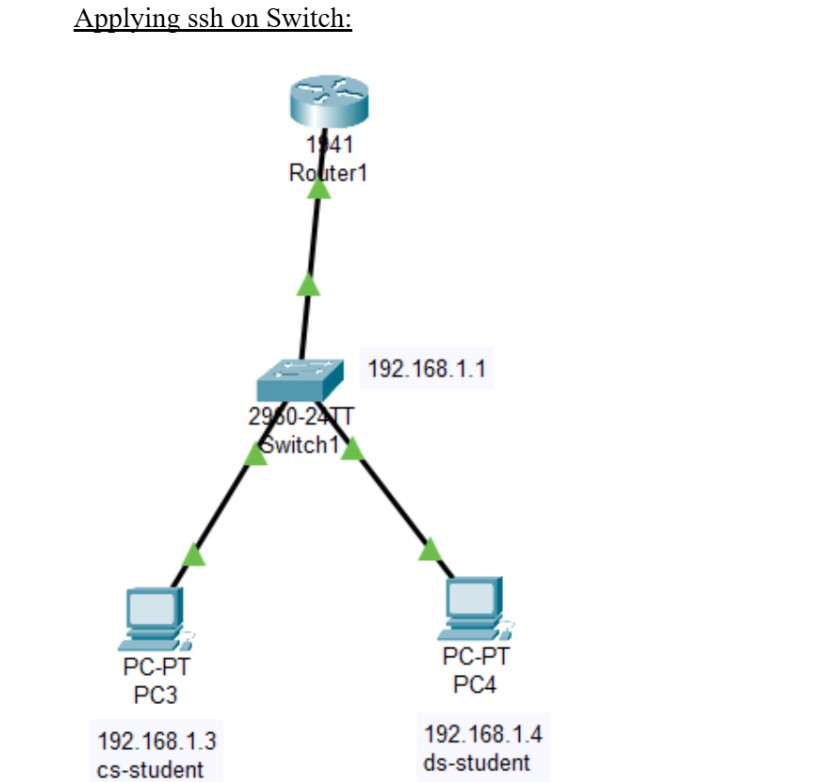
Explanation: `hostname` and `ip domain-name` are necessary before generating RSA keys. `crypto key generate rsa` creates the server key. `login local` tells VTY to use the local user database. `transport input ssh` disables Telnet on VTY lines if you want an SSH-only policy.

6. Verification & Best Practices

  • Verify connectivity with ping and then attempt SSH/Telnet sessions from client PCs.
  • Prefer SSH over Telnet in real networks — Telnet sends plain-text credentials.
  • Use strong passwords or, better, key-based authentication for SSH.
  • Limit VTY access with ACLs or use AAA servers (RADIUS/TACACS+) for large environments.

7. Lab Resources

Applying Telnet,SSH on Switch & Router PDF

Download PDF