This lab covers the implementation and analysis of HTTP/HTTPS, DNS configuration in Cisco Packet Tracer, and packet capture/analysis using Wireshark. You will configure a web server, observe HTTP and HTTPS traffic, create DNS records, and use Wireshark filters to inspect network traffic.
HTTP (Hypertext Transfer Protocol) is the foundation of data communication for the World Wide Web. The client (browser) sends requests and the server responds with resources such as HTML. HTTPS secures HTTP by using SSL/TLS to encrypt the channel between client and server.
| HTTP | HTTPS |
|---|---|
URL begins with http:// |
URL begins with https:// |
Port 80 |
Port 443 |
| Unencrypted | Encrypted (SSL/TLS) |
| No certificate required | Server certificate required (CA-signed or self-signed for lab) |
| Works at Application Layer | Encryption at Transport Layer (TLS) + Application |
Steps (Packet Tracer):
# Packet Tracer hints - browser test
1. Open PC0 -> Desktop -> Web Browser
2. Type web server IP (e.g. http://192.168.2.2) or hostname (<use DNS if configured>)
3. Switch to Simulation -> Edit Filters -> enable 'http' or 'https' then Capture/Forward
Observe HTTP and HTTPS traffic using Cisco Packet Tracer and capture PDUs to see difference in port numbers and payload.Use the Packet Tracer web browser and the simulation filters to capture HTTP (port 80) and HTTPS (port 443) PDUs and inspect the outbound/inbound PDU details.
DNS (Domain Name System) translates human-friendly hostnames into IP addresses. In Packet Tracer you can enable DNS on a server and add records like A, CNAME, NS, and SOA for the simulated network.
# Common DNS record types (conceptual)
A      # Map hostname to IPv4 address
CNAME  # Alias pointing to a canonical hostname
NS     # Authoritative name server for a zone
SOA    # Start of Authority - zone metadata
name: web-server, IP: 192.168.2.2, click
Add.
alias: www, canonical: web-server, click
Add.
web-server or www to
verify resolution.(Not all Packet Tracer devices require the same exact commands; this is sample CLI for real devices / learning.)
!-- Example: configure router interface (conceptual)
enable
configure terminal
interface GigabitEthernet0/0
 ip address 192.168.1.1 255.255.255.0
 no shutdown
exit
!-- Configure DNS server IP on router (if acting as resolver)
ip name-server 192.168.2.10
Wireshark is an open-source packet analyzer used for troubleshooting and protocol analysis. Use these filters to capture and analyze specific network traffic patterns.
Use the provided test site in the lab or any controlled test server (do not capture or inspect private traffic you don't own). Inspect the following in Wireshark:
# Example test site used in lab (public test target)
URL: http://testphp.vulnweb.com/login.php
Username: test
Password: test
# (Used only in lab for educational packet structure analysis)
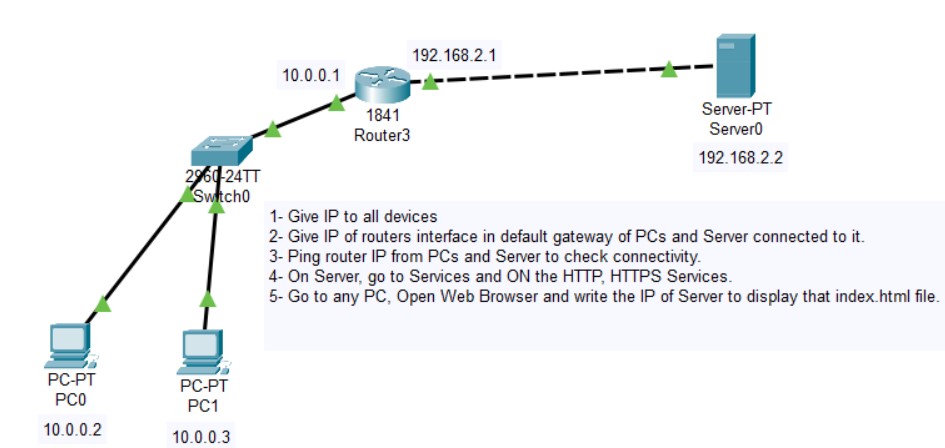
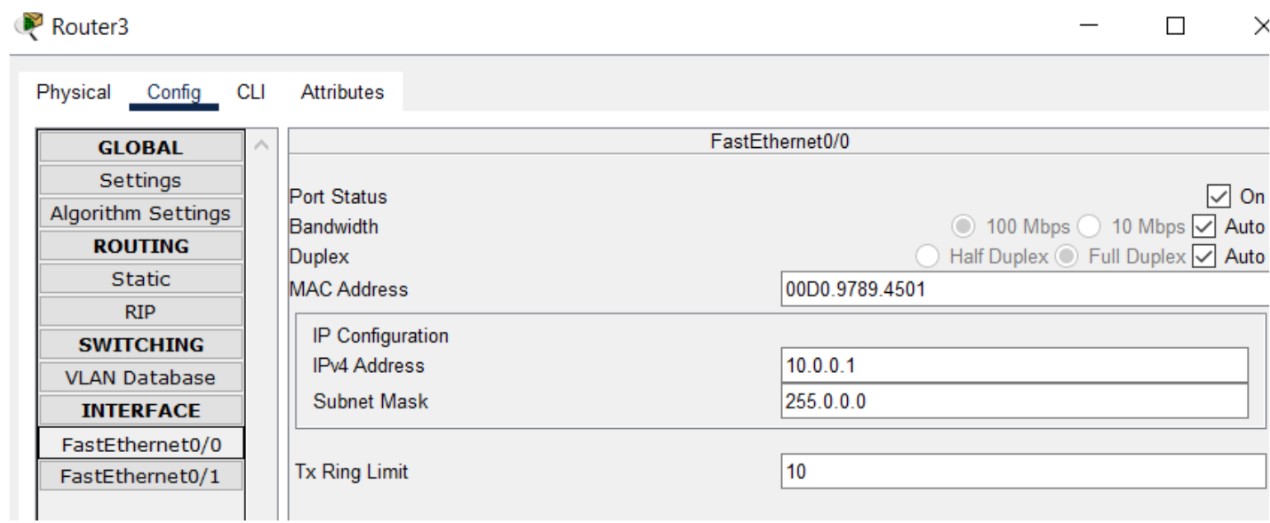
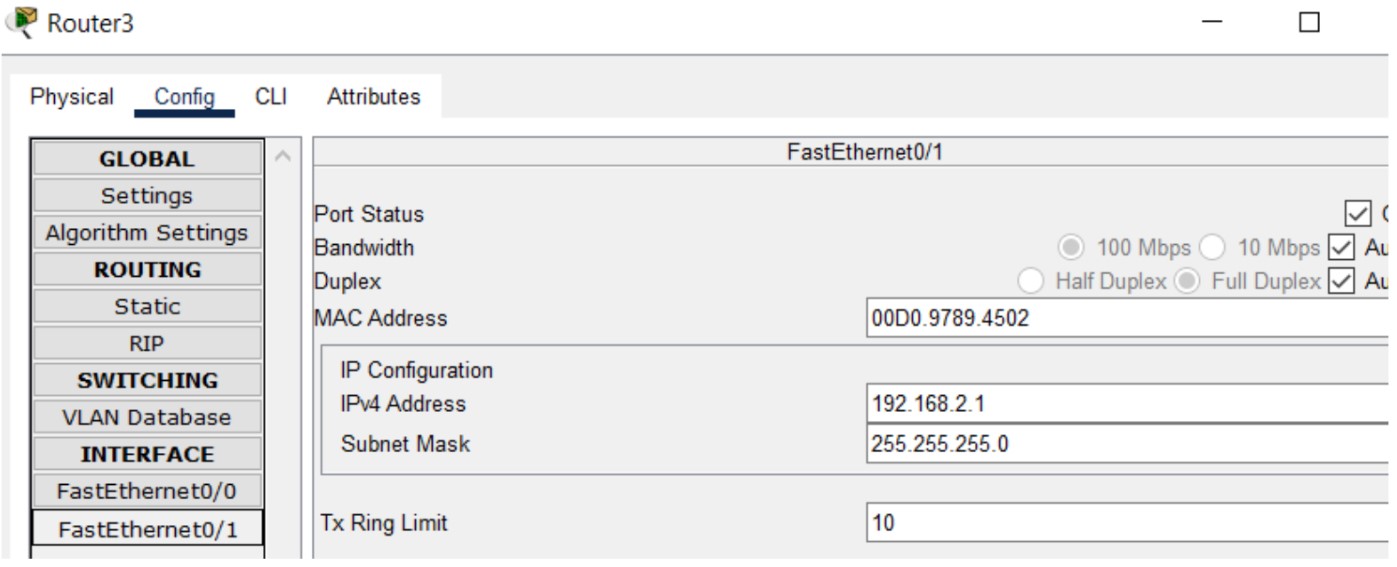
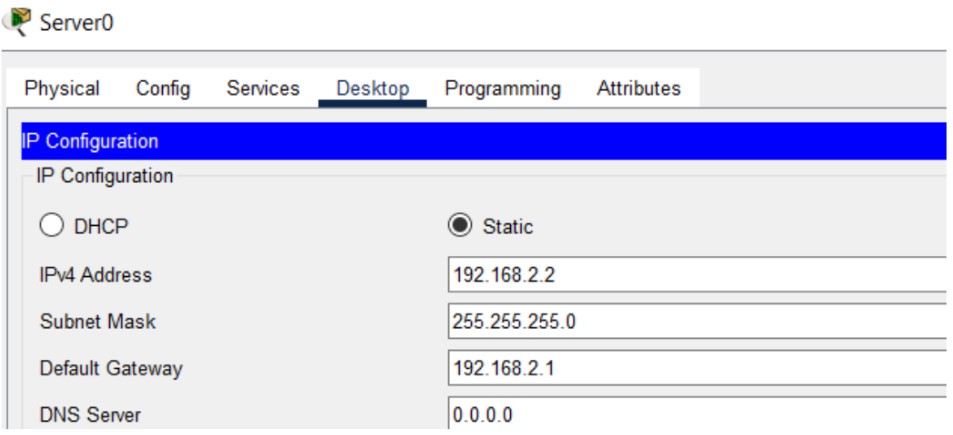
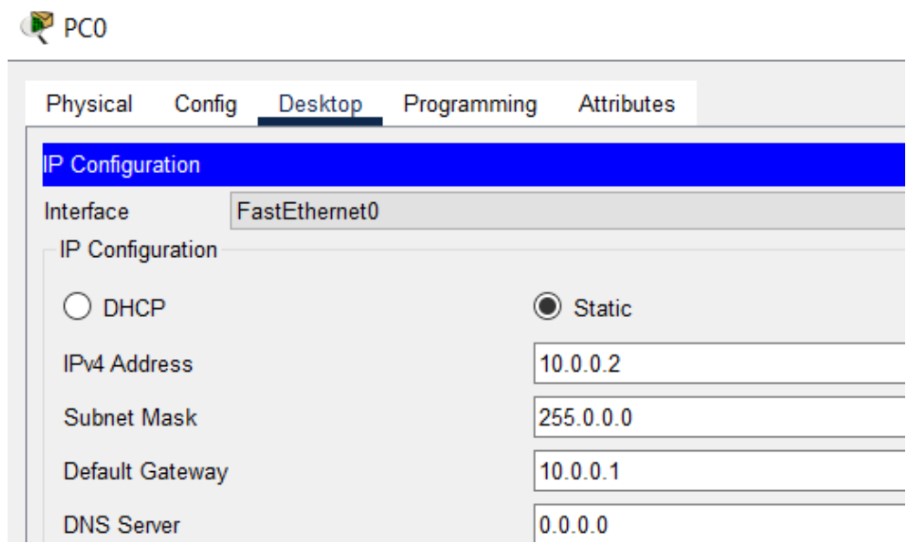
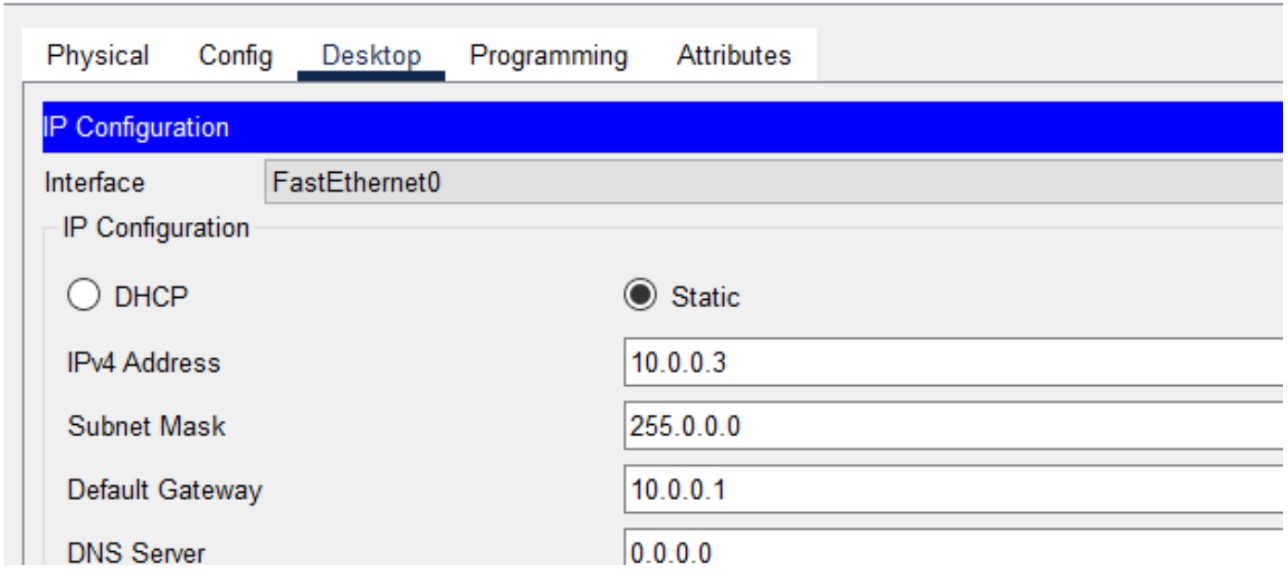
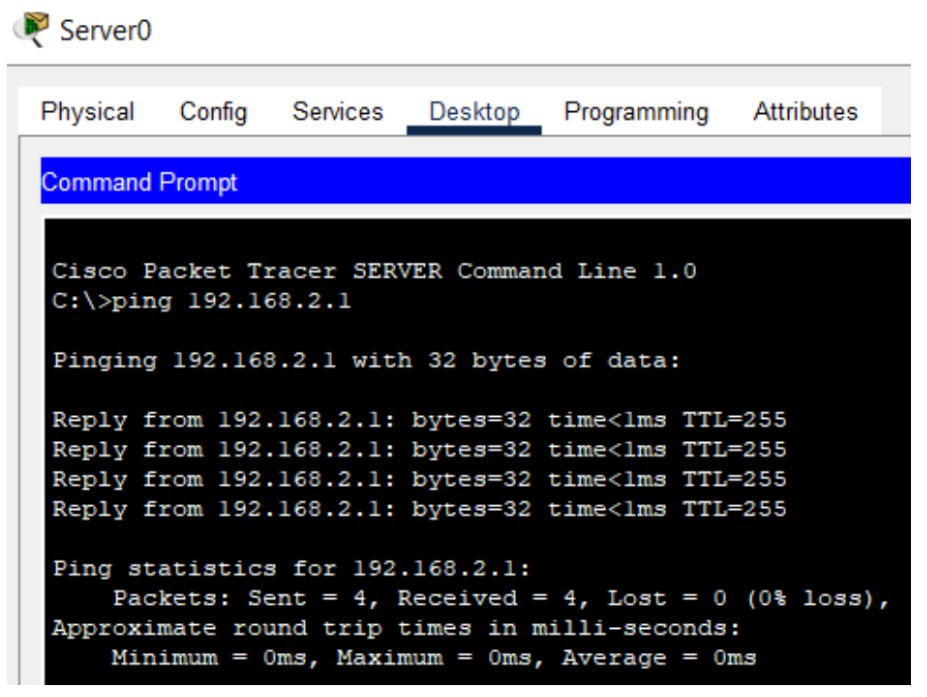
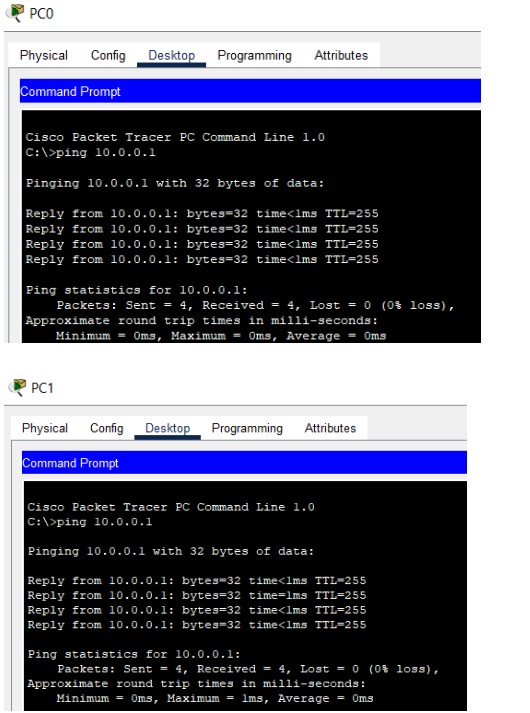
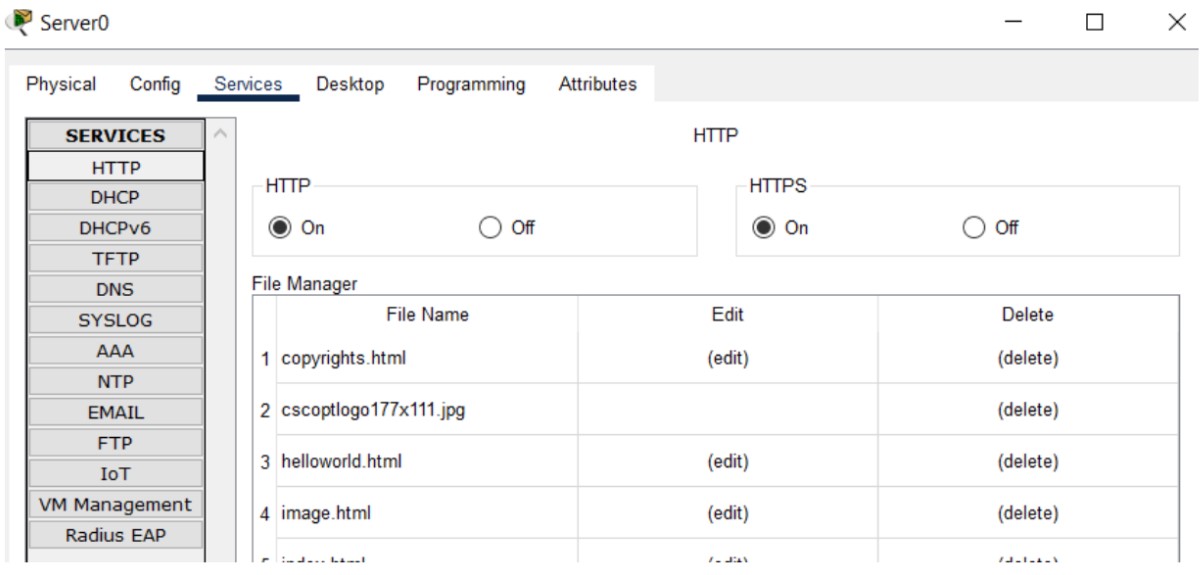
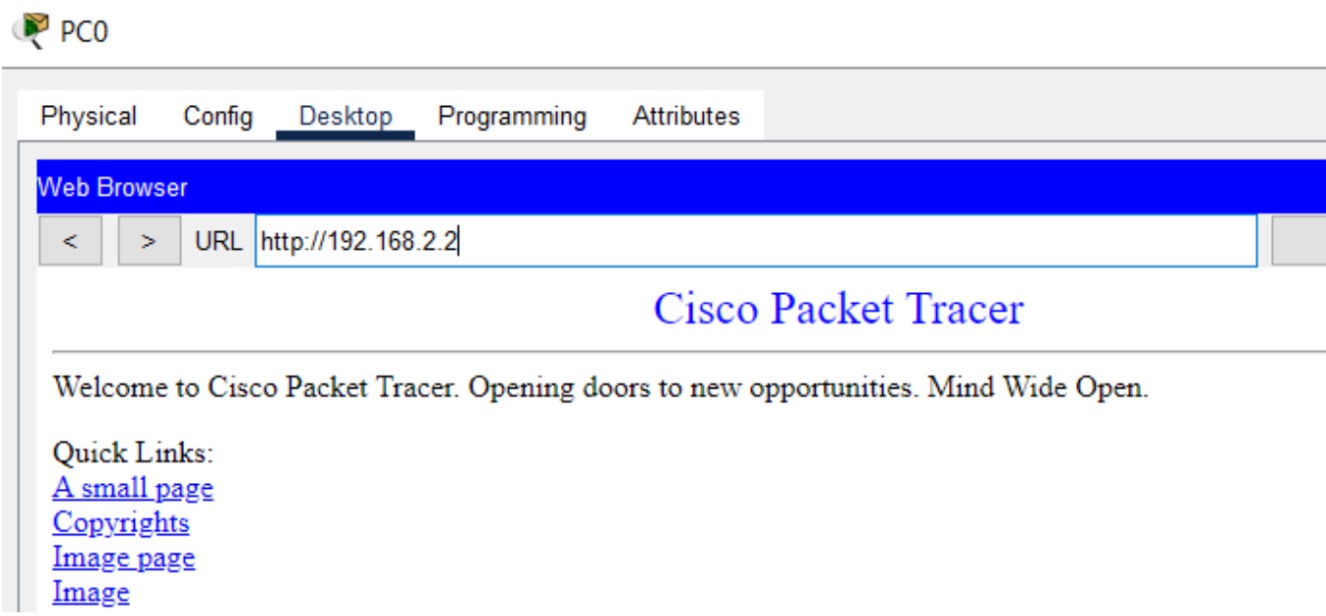
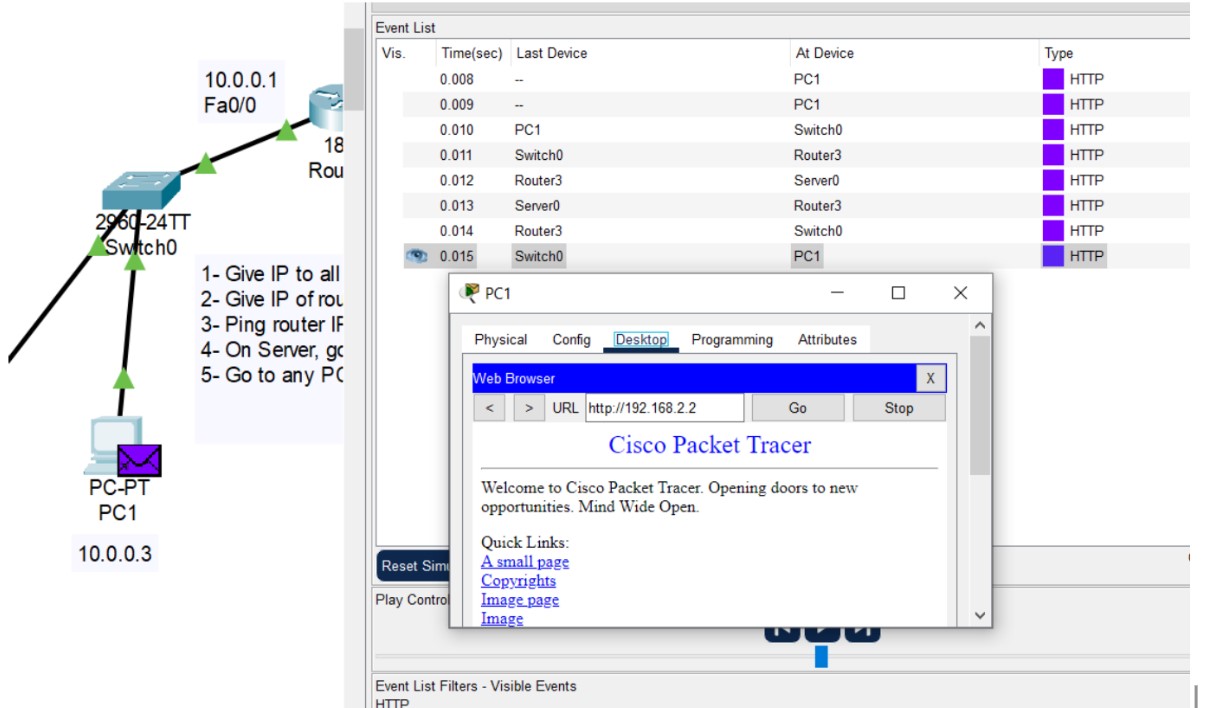
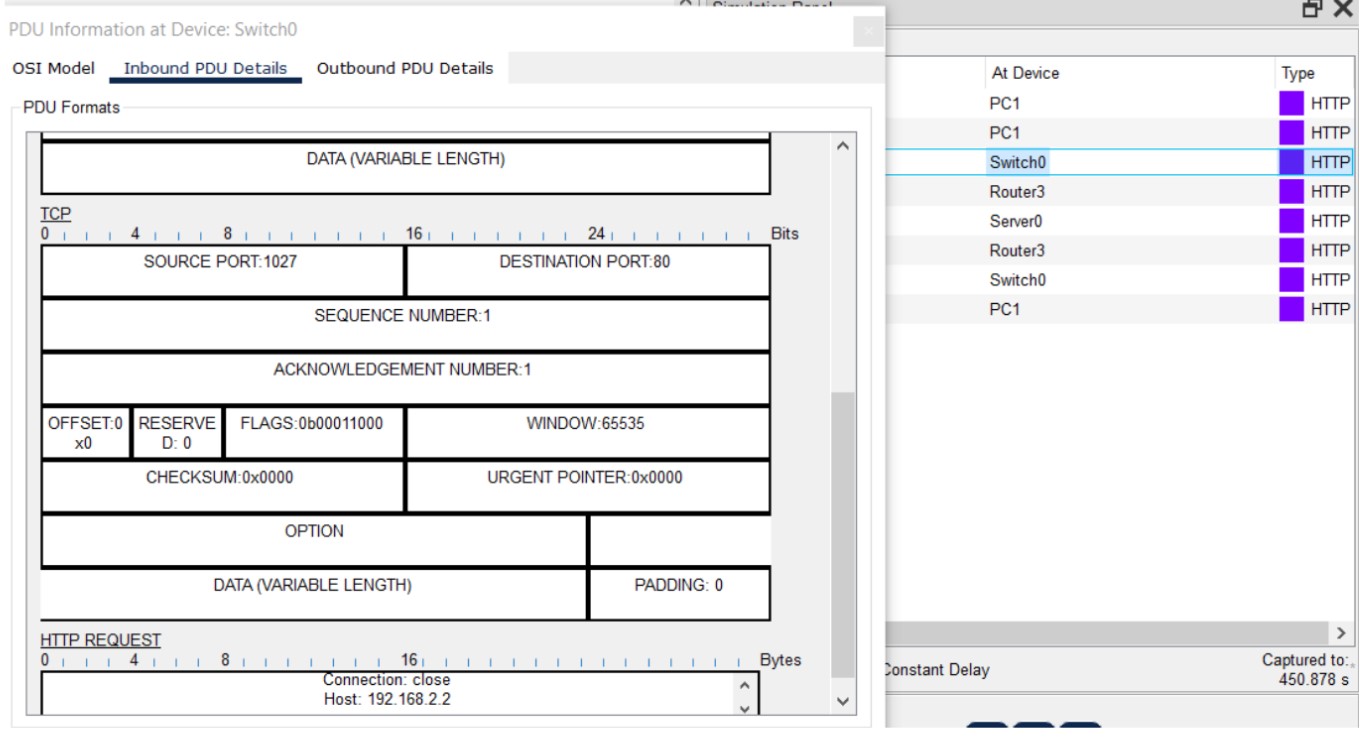
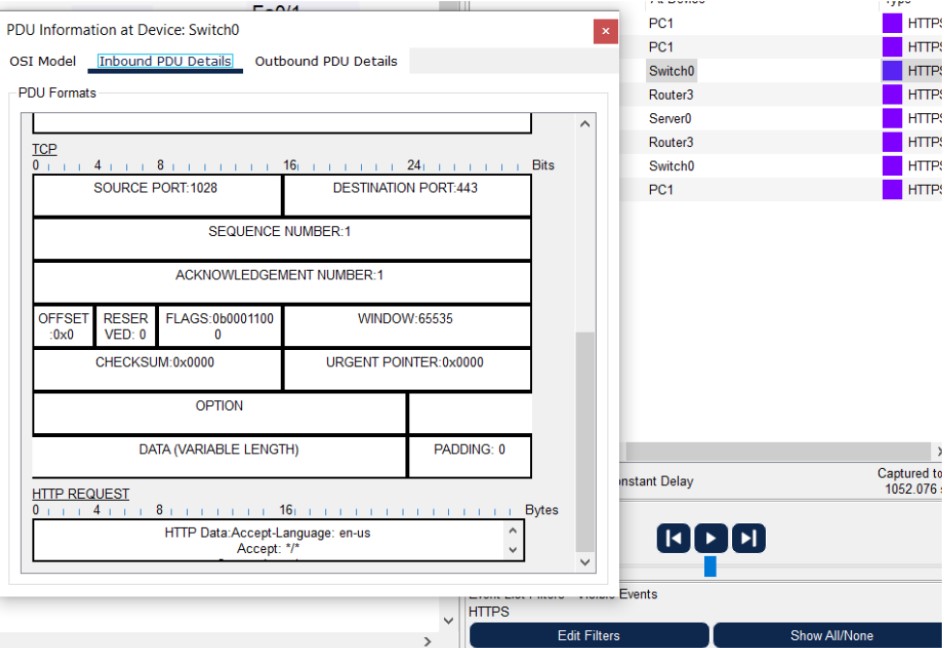
Figure 1: HTTP/HTTPS implementation network topology.
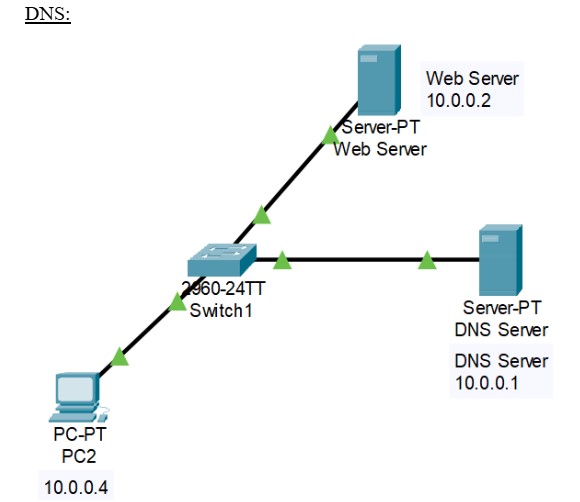
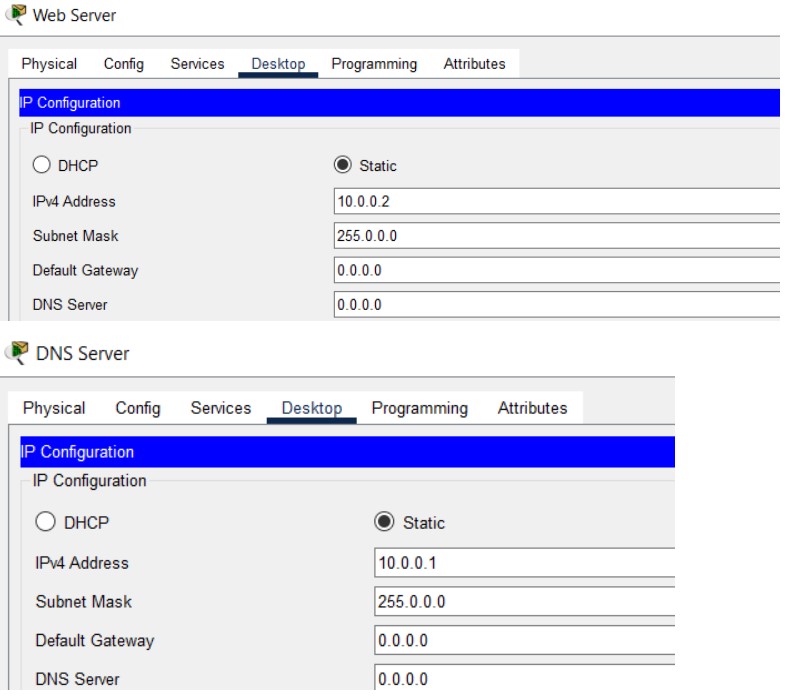
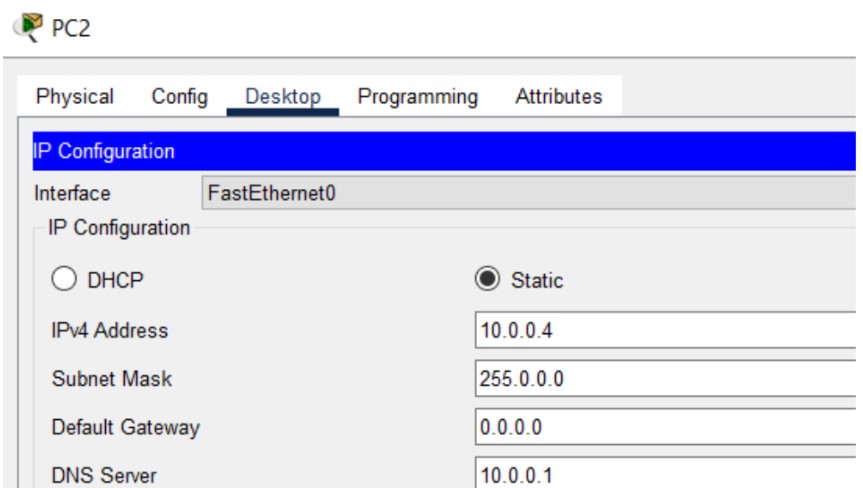
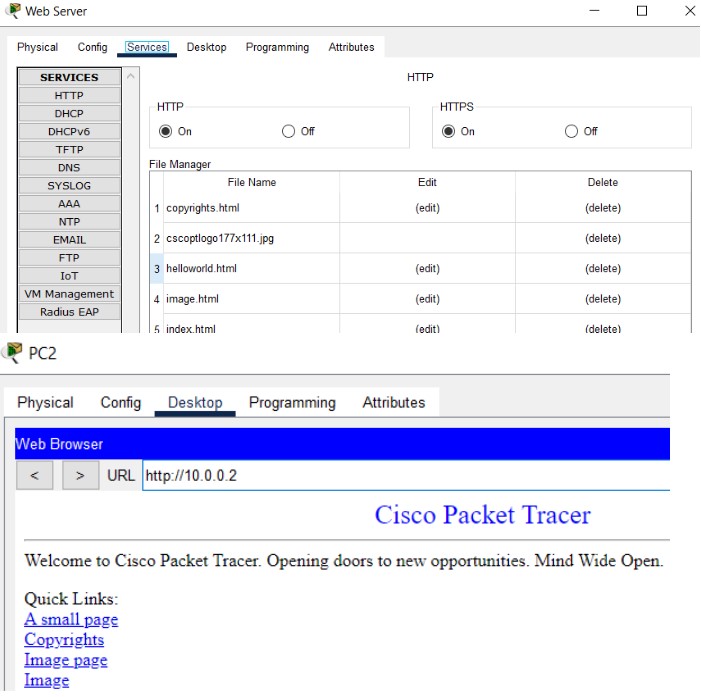
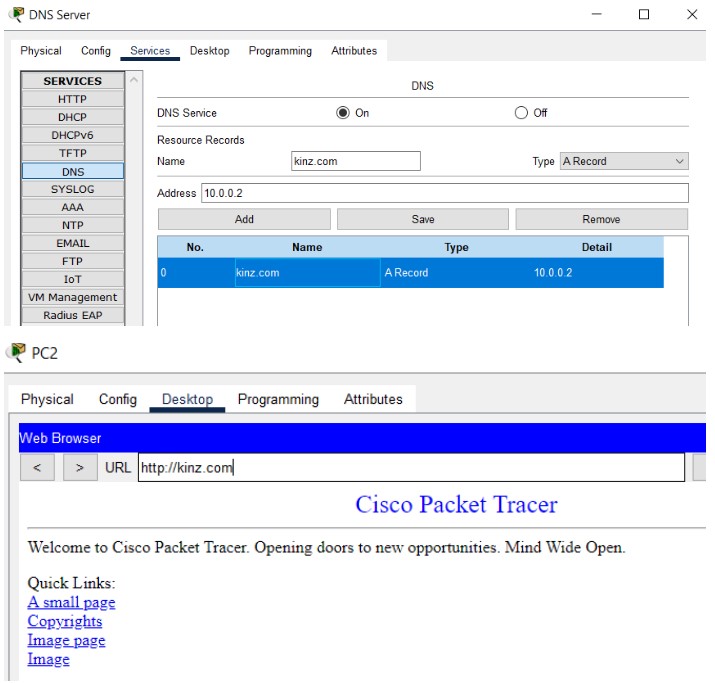
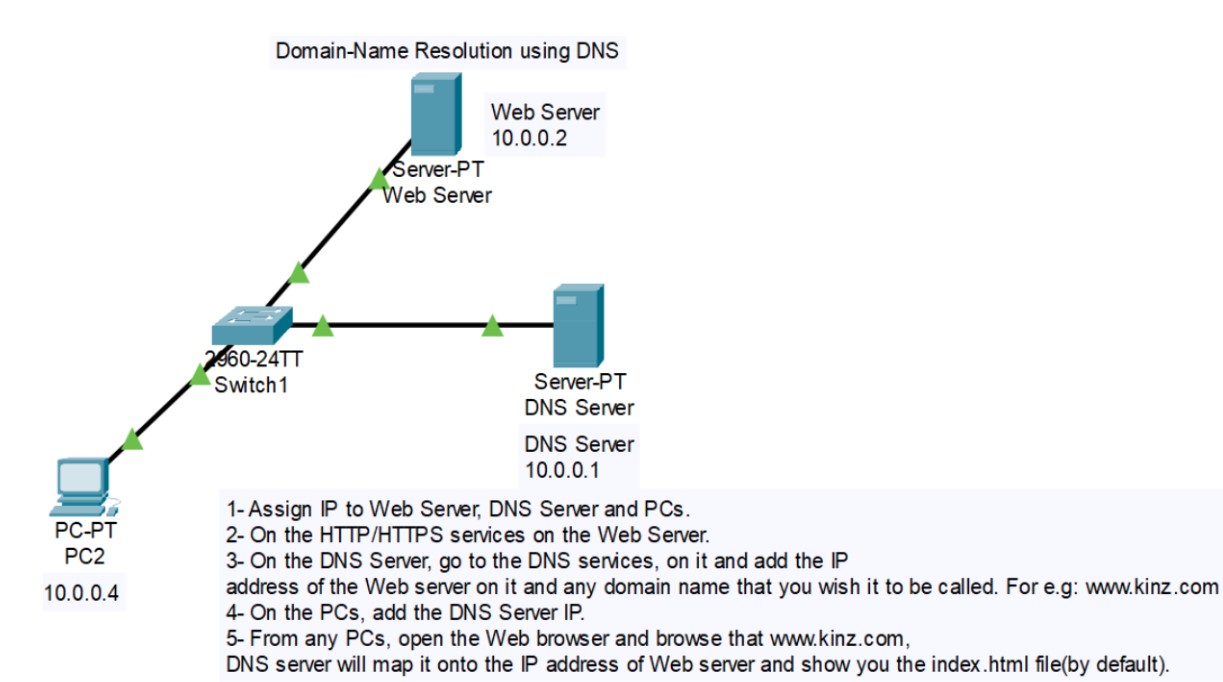
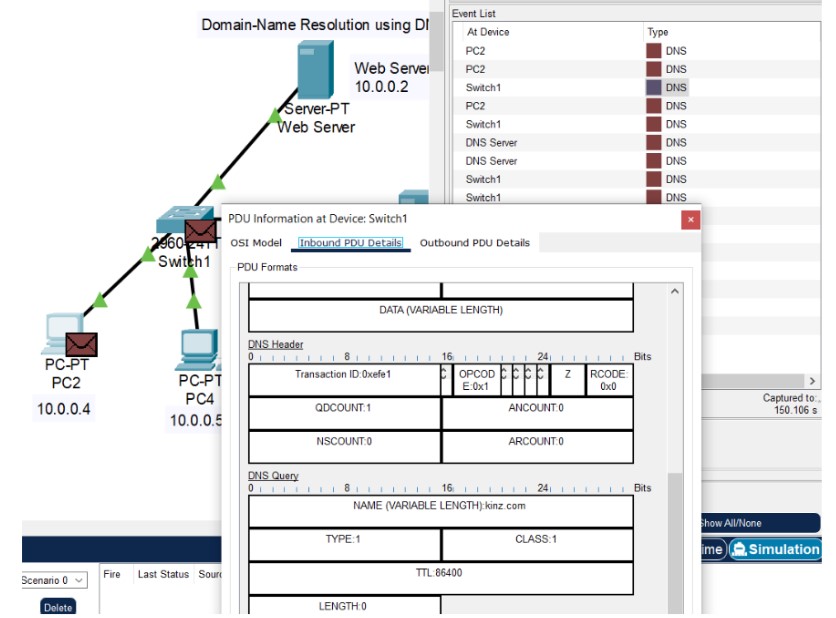
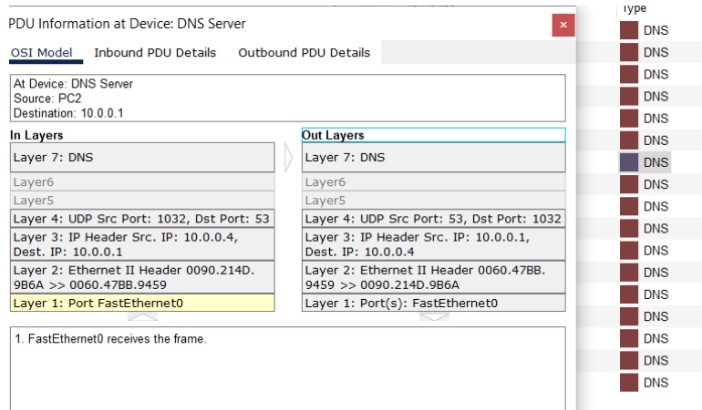
Figure 14: DNS implementation network topology.